


If you own a business or head up a marketing team, you will need to know how to grant partner access in Meta Business Suite for service providers you may work with. Meta has become less and less intuitive over time, making it more difficult for new users to navigate the Business Suite. In this article, we'll show you how to grant partner access in Meta Business Suite step-by-step.
Why do service providers need access to my Meta Business Assets
If you've explored your Business Suite, you'll see that it contains a host of helpful functions for your business. This is where you can compose and schedule posts, respond to messages and notifications, set up ad campaigns and post boosts, and track all your analytics. Naturally, this information and these functions are private, so if you work with a service provider, you will need to grant them permission to access your Business assets.
This allows social media managers to schedule and boost your posts, consultants to audit your analytics and performance marketers to set up and manage ad campaigns on your behalf.
If you still need to set up your Meta Business Suite, check out our step-by-step guide before returning to this article to start assigning partners
Before you begin
You will be ready to add a partner to your Meta Business Suite once all of the below is in order:
- You have permission to grant access. If you are not the owner of this business portfolio, and don't have the necessary permissions in Meta Business Suite, you will not be able to grant access to partners.
- You know what level of access to grant. Not all service providers need full access to all of your assets. Find out what level of access they need and grant permission accordingly.
- Your partner also has a business portfolio and is able to provide a business ID. Even if you are working with a single freelancer, they should be working on your assets from their business account. For your safety, never give individuals access to your business portfolio unless they are employees.
- You have two-factor authentication turned on. This is an additional security measure you can use to ensure no one can access your Business Suite unless they have access or permission.
Granting partner access in Meta Business Suite
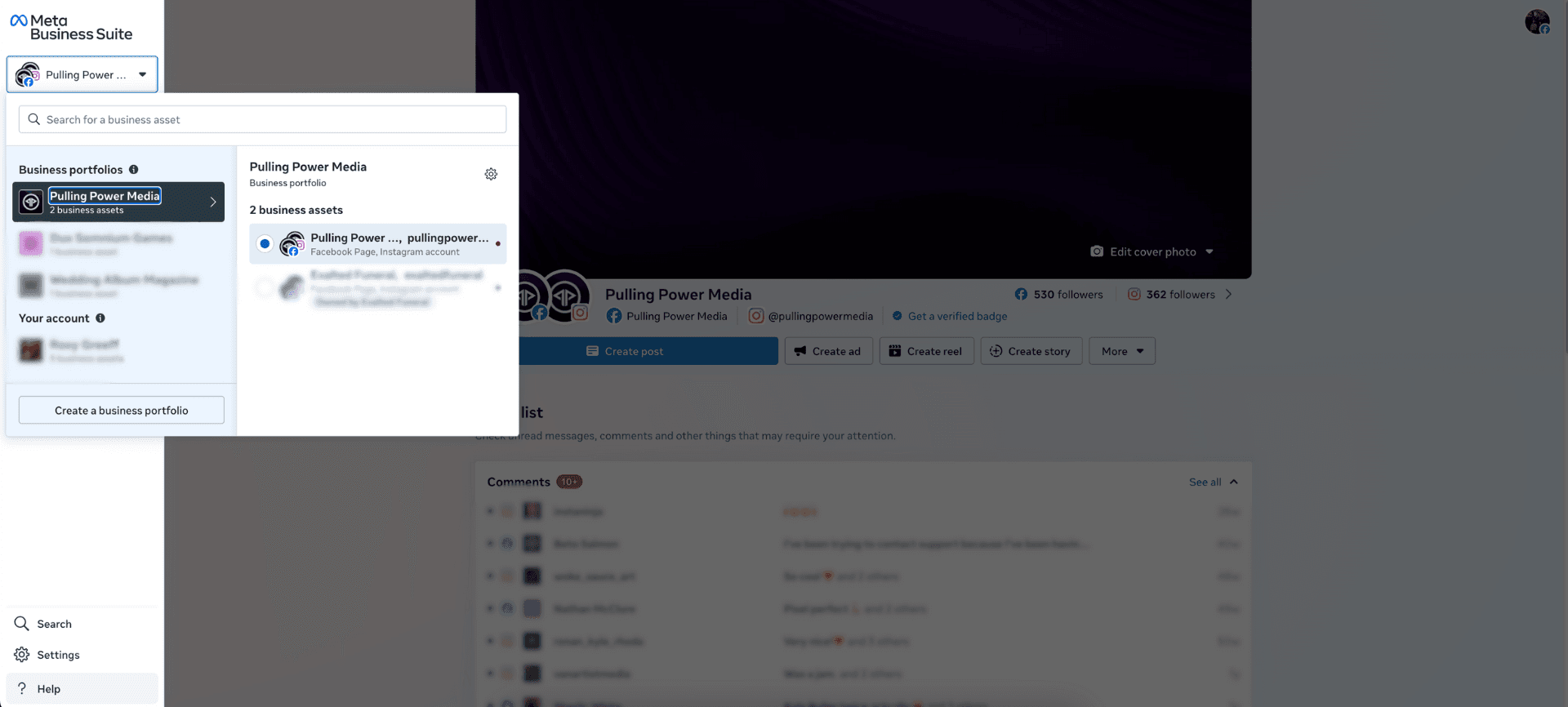
Step 1 - Visit http://business.facebook.com/ and login using your Facebook credentials. If you own more than one business, remember to select the correct one from the dropdown in the top left corner.
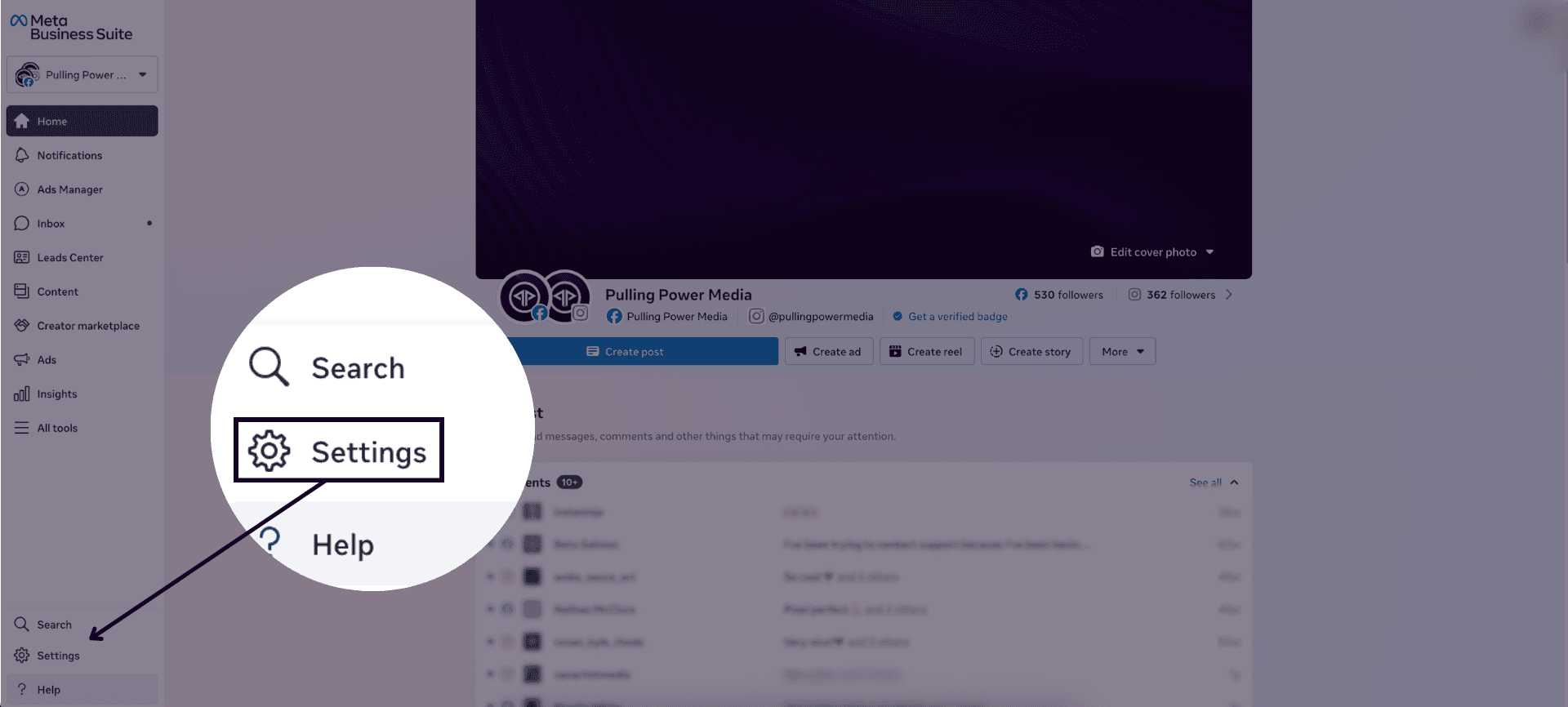
Step 2 - Click on Settings in the bottom left corner.
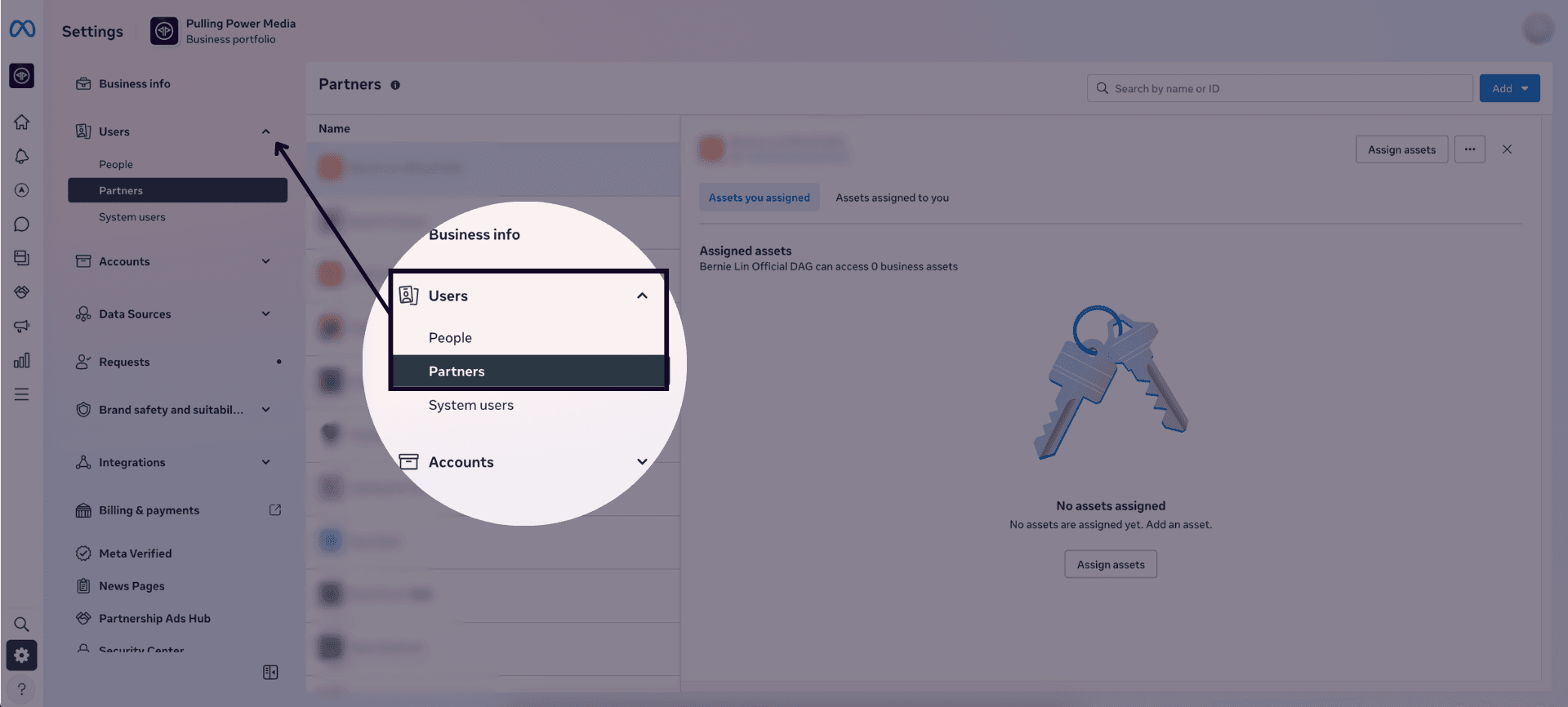
Step 3 - Open the Users menu and click on Partners.
If you don't see Partners under this menu, you don't have permission to grant this level of access. You will need to contact the owner of this business portfolio to grant partner access or to increase your own levels of permission.
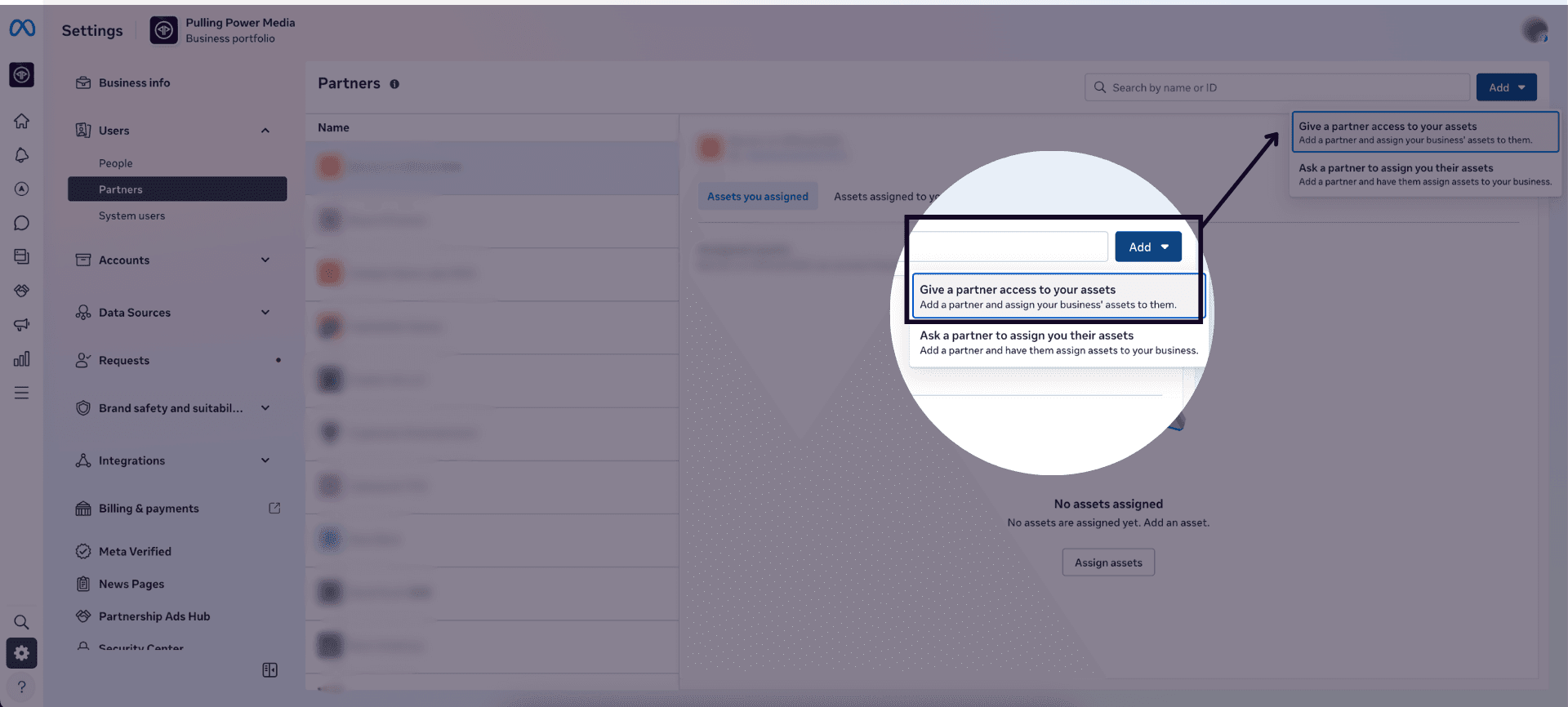
Step 4 - Click on Add in the top right corner and select Give a partner access to your assets from the dropdown.
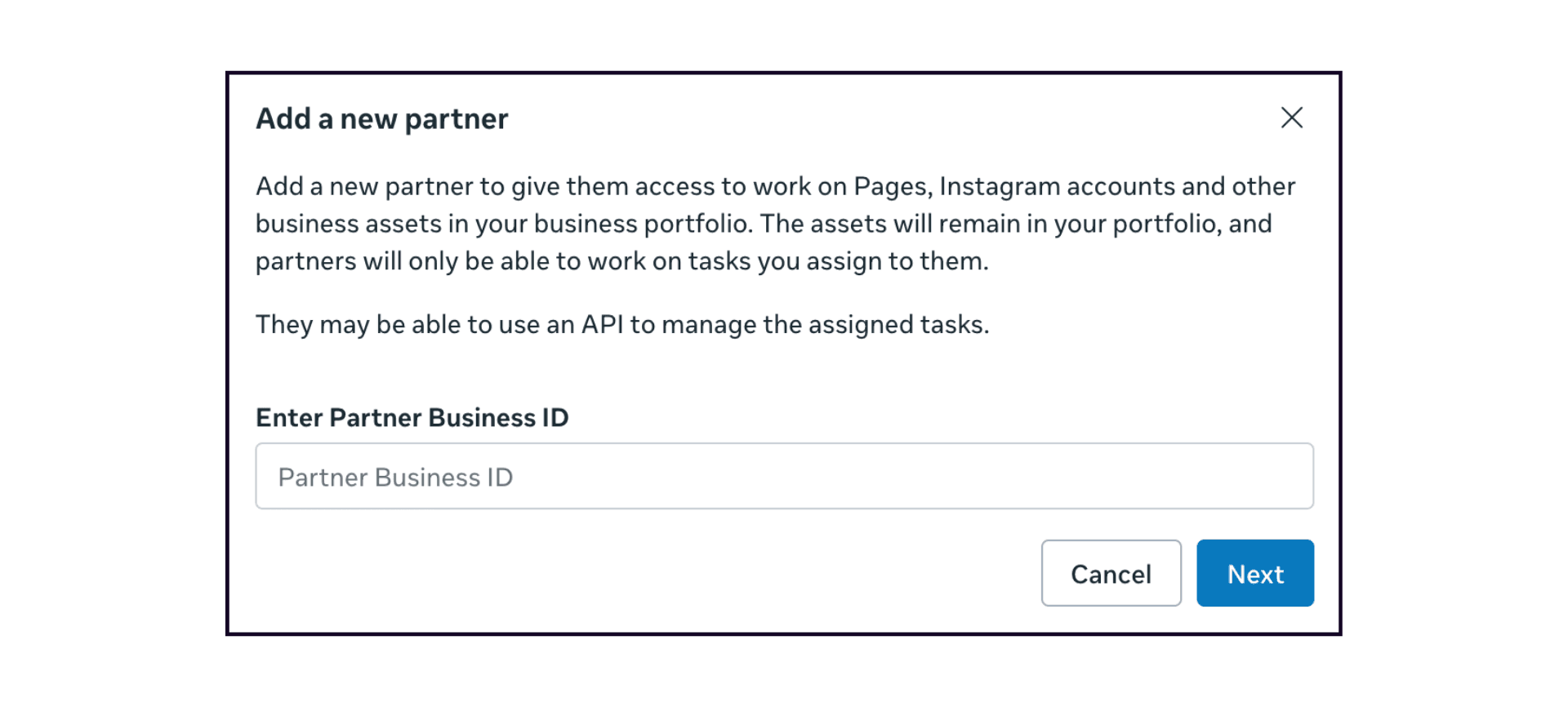
Step 5 - Enter your service provider's Business Manager ID in the pop-up and click Next.
Step 6 - You will see a list of assets (Facebook pages, ad accounts, audiences, product catalogues, etc). Your service provider will let you know which they need access to. Once selected, you also need to assign the level of access. You can choose between View, Manage or Admin. Your provider will also let you know which level of access will be needed.
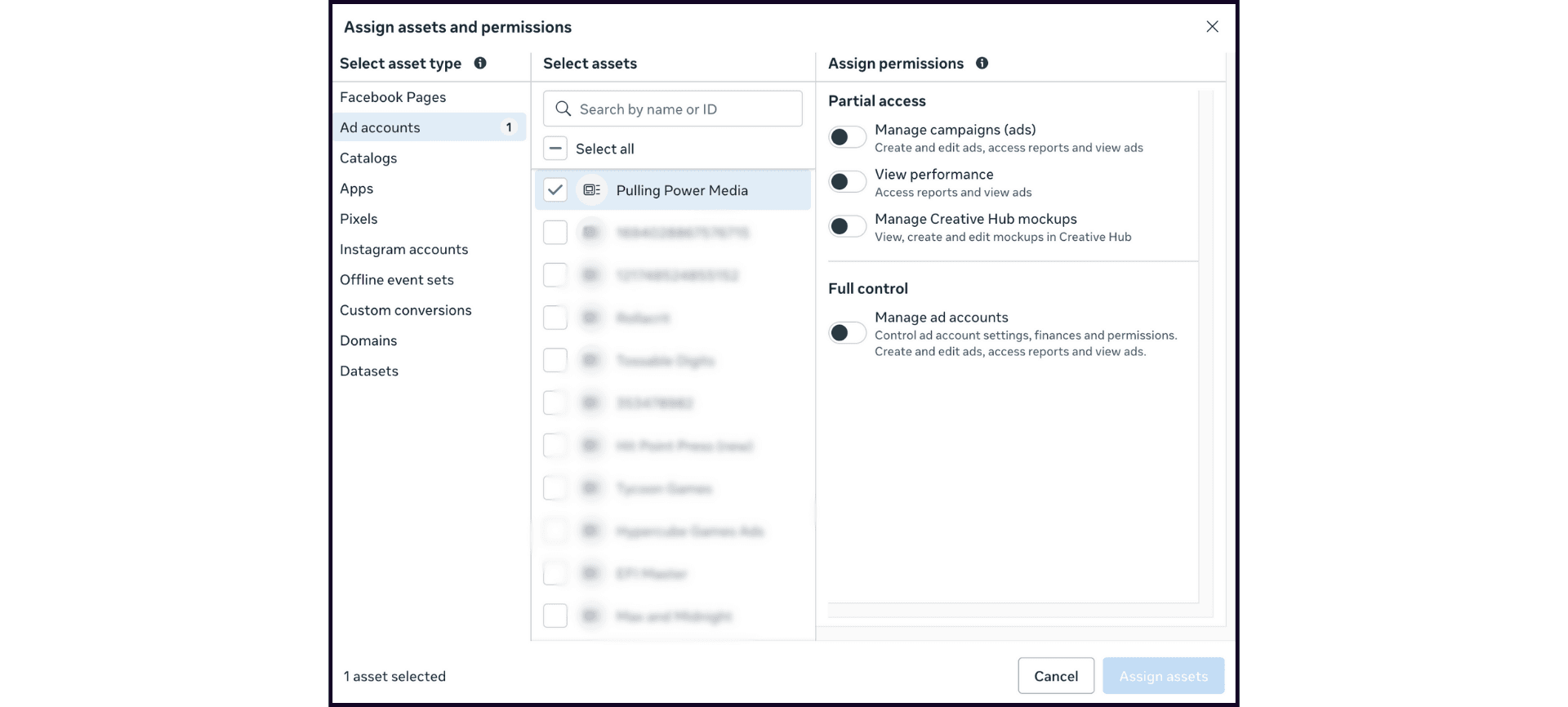
Step 7 - Review and click Assign assets to finish.
And you're done! You can keep track of all the providers who have access to your Meta Business Suite assets in the Settings menu. When services are terminated or completed, a responsible provider will remind you to remove their access, but if they don't, you should always include this as one of your most important steps in provider off-boarding.
If you'd like to see more articles like this, have any questions or would like to chat about working together, don't hesitate to get in touch.